

How to Pay With Paze at Clover Checkout (Oct 2026)
NCnextcard team
Advertiser Disclosure: nextcard may receive compensation from card issuers. Opinions expressed here are the author's alone, not those of any bank, credit card issuer, airlines or hotel chain. For the most up-to-date terms & conditions, refer to the official credit card application on the issuer's website.
If you've seen people getting free Dunkin coffee and breakfast with Paze, you may be wondering whether the promotion actually works... and how to make sure your purchase qualifies.
The short answer is yes, it still works as of August 23.
If your bank/credit card supports Paze and you check out with an eligible card at Dunkin's online checkout, you can currently earn a $10 statement credit after spending $10 or more in a single transaction. And the offer can be used up to 10 times per eligible card, allowing cardholders to earn as much as $100 back per card. But, this promotion is only available through Sep 10, 2026.
This guide explains exactly how to use Paze at Dunkin', how the promotion works, which purchases qualify, and the mistakes that can keep you from receiving your statement credit.
TL;DR
Yes, you can use Paze to pay at participating Dunkin online checkout.
Spend $10 or more in one qualifying transaction to receive a $10 statement credit.
The promotion can be used up to 10 times per eligible credit or debit card through September 10, 2026.
However, Dunkin gift card or card purchases are sometimes throttled (Aug 19 update: it looks like you can buy up to 3 Dunkin cards per day before APP4241 comes up)
Statement credits are issued by your participating financial institution—they are not instant discounts at checkout.
Using Paze at Dunkin' is straightforward once you sign up for Paze.
Paze is designed specifically for online checkout. Instead of entering your card number manually, Paze securely retrieves your eligible payment cards from your participating financial institution and lets you complete your purchase without exposing your card number to the merchant.
Assuming you've never used Paze before, these first steps will help with setup.
Before ordering, verify that your bank or credit card participates in Paze. Paze will show which cards are eligible after you set up your account.
Many major financial institutions currently support the service, including:
Chase
Bank of America
Capital One
Citi
PNC
Truist
U.S. Bank
Wells Fargo
Star One
To sign up, go to paze.com, click Activate Wallet, and enter your phone number or email address.

Paze will automatically surface any eligible cards linked to your participating bank that qualify for the promotion, so they show up directly in your Paze wallet.
You don't necessarily need to manually add a card if it already appears in your wallet after signing in; that means it's already eligible and enrolled. If a card you want to use doesn't show up automatically, you can add it manually by logging into your bank's website or app and enabling Paze for that card.
You'll need to use the Dunkin mobile app.
Build your order just as you normally would. Make sure you're logged into a Dunkin account with the same email as your bank account.
If everything is done correctly, at the final checkout step, you'll see Paze. You might have to click "Other Payment Methods" to expand the list.
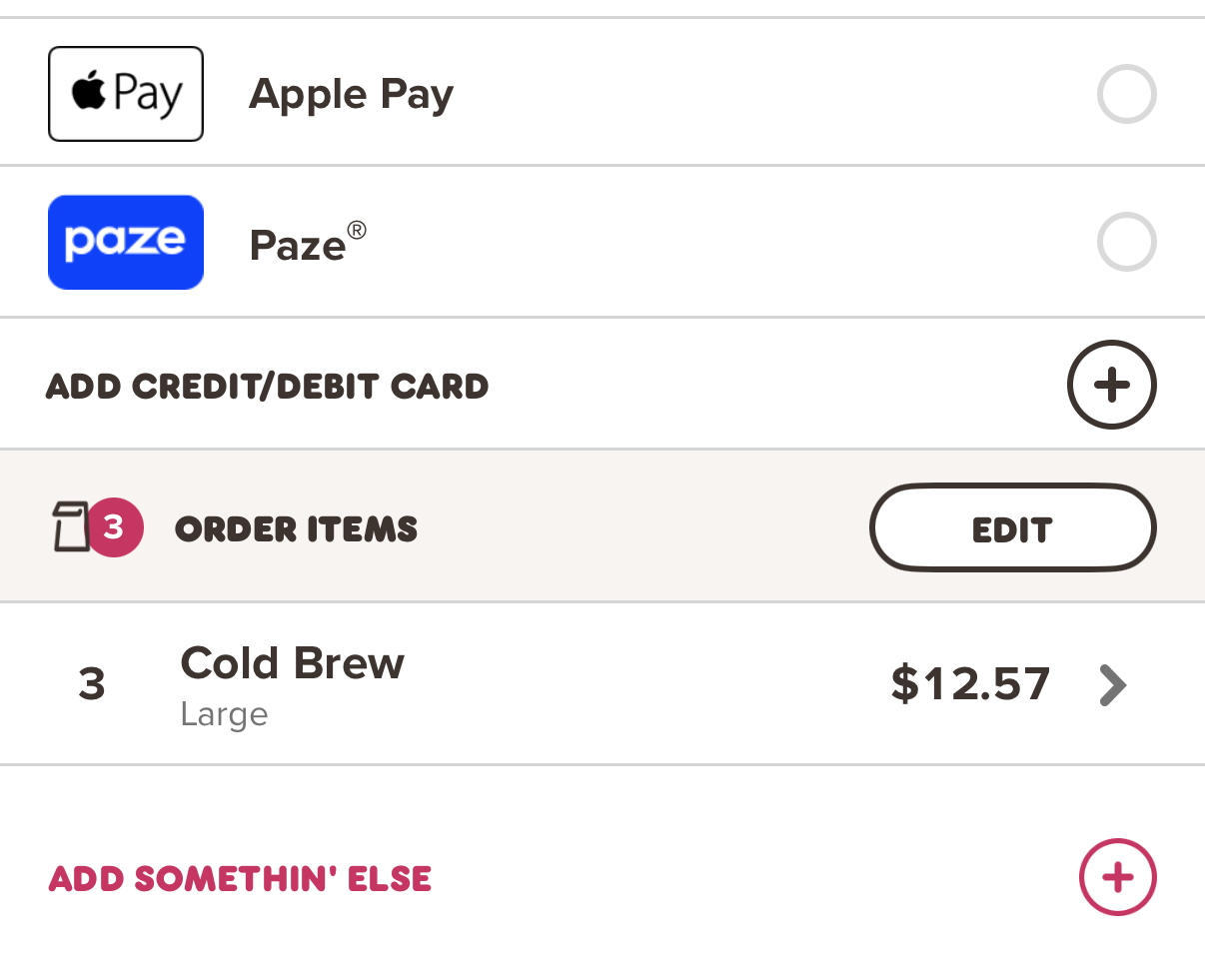
When you reach the payment page, select Paze as the payment method.
Finish checkout using your selected eligible card. To qualify for the promotion, your single purchase must total at least $10 before completing checkout. Purchases below $10 won't receive the promotional statement credit. You'll see a green banner come up showing this promo.
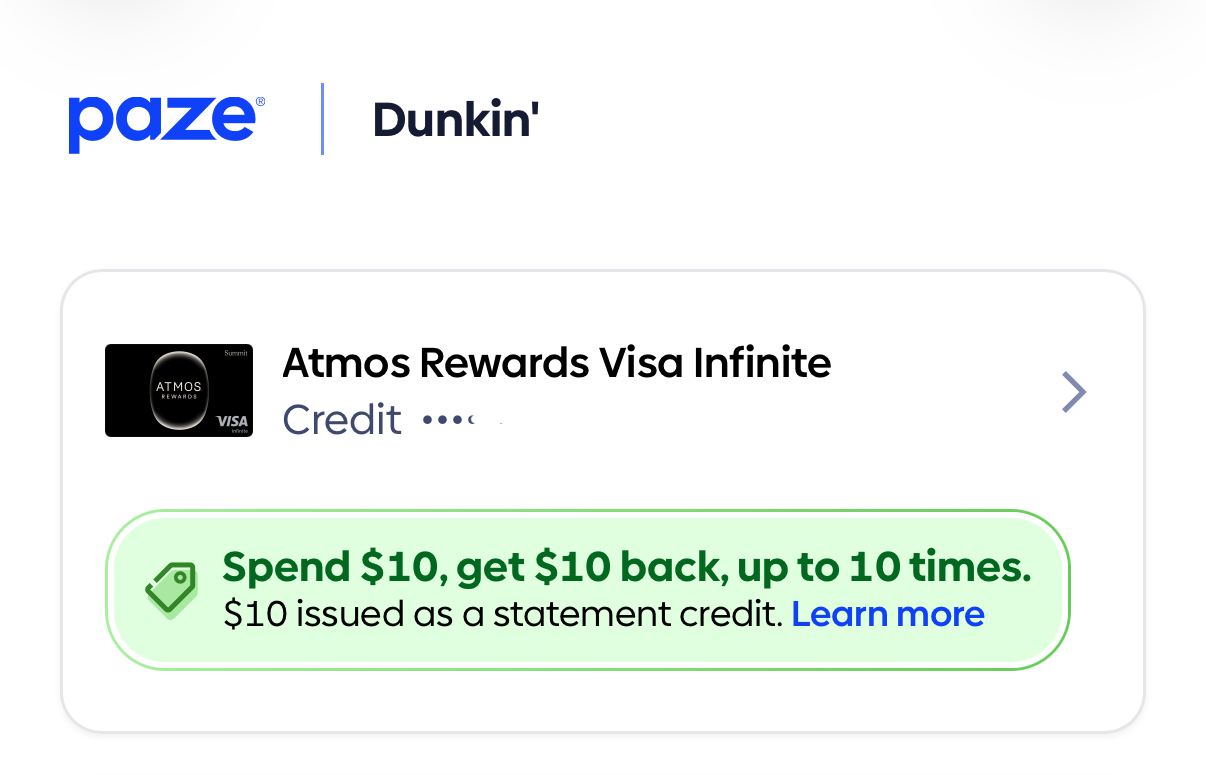
The purchase processes like any other online card transaction.
You pay the full purchase amount upfront, and the statement credit is applied later by your participating financial institution. It can take up to 1-2 billing cycles, but it's usually pretty quick.
My favorite way to use the Paze offer is by purchasing Dunkin gift cards. As of August 04, 2026, this method still works! Update: on August 08, they lifted the throttle (source) [we bought 50 gift cards this morning] [Update 2: this was patched at 5 pm PST the same day, so you can no longer buy an unlimited number of gift cards] [Update 3: as of Aug 19, you can buy 3 per 24 hour batch]
Dunkin' lets you buy Dunkin' gift cards through Paze checkout, and you can send one to yourself or to someone else by entering the recipient's email or phone number at checkout. It lets you stack up hundreds of dollars for future Dunkin Donuts purchases.
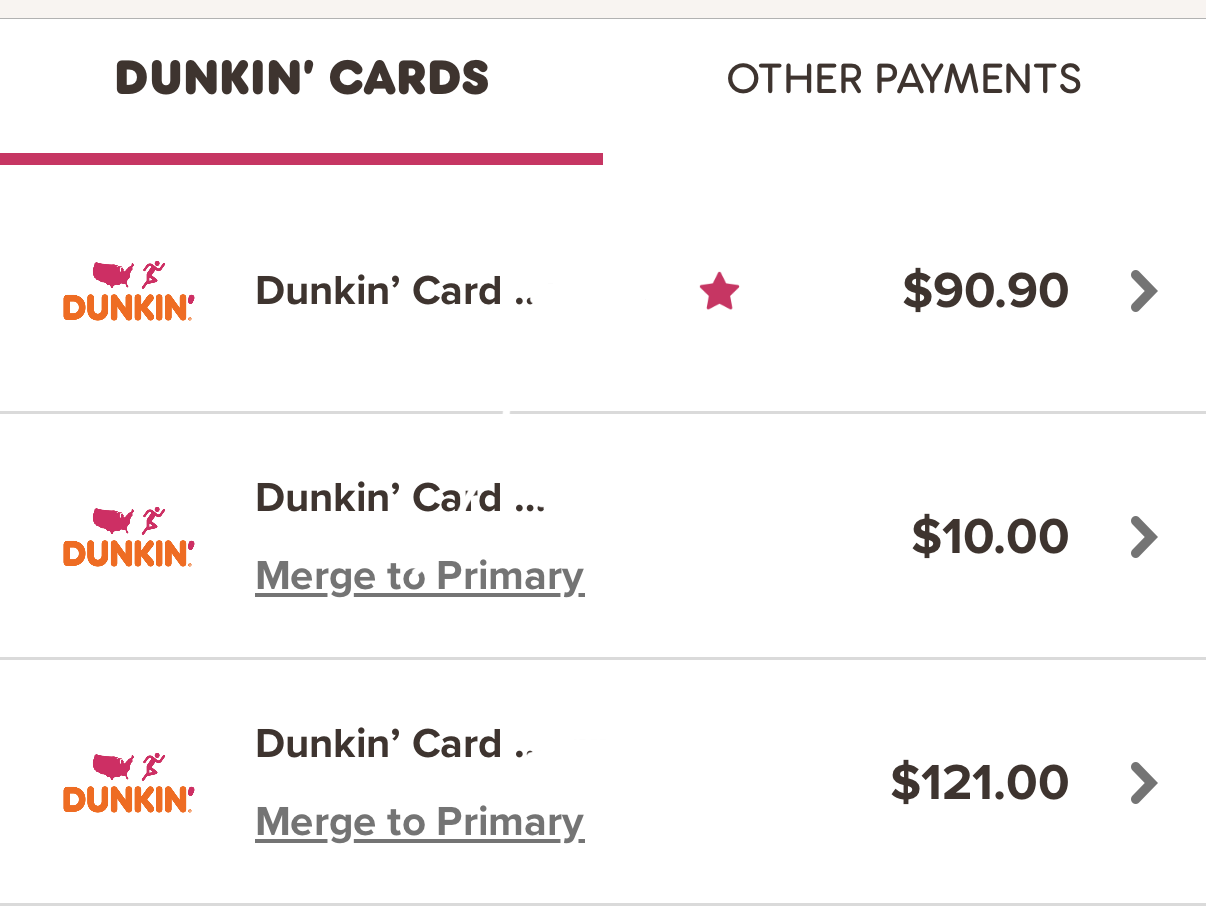
Here's how you can buy a net new Dunkin card for $10 and get $10 back with Paze:
In the Dunkin app, click the sidebar hamburger and click "Add/Manage Cards"
Click "Add Another Dunkin' Card"
Click "No" to "Do you have a Dunkin's Card?"
At the Add Value step, select $10 and Paze
You'll be prompted to login to Paze
Enter your card's CVV if prompted
You'll see the Spend $10/Earn $10 banner appear
If done, you'll see another $10 Dunkin Card added to your account!
Dunkin' currently appears to limit these gift card purchases to once every 24 hours, so you can't buy multiple gift cards back-to-back in the same day—even if you're sending them to different recipients.
You need to combine your gift cards. Click "Merge to primary"
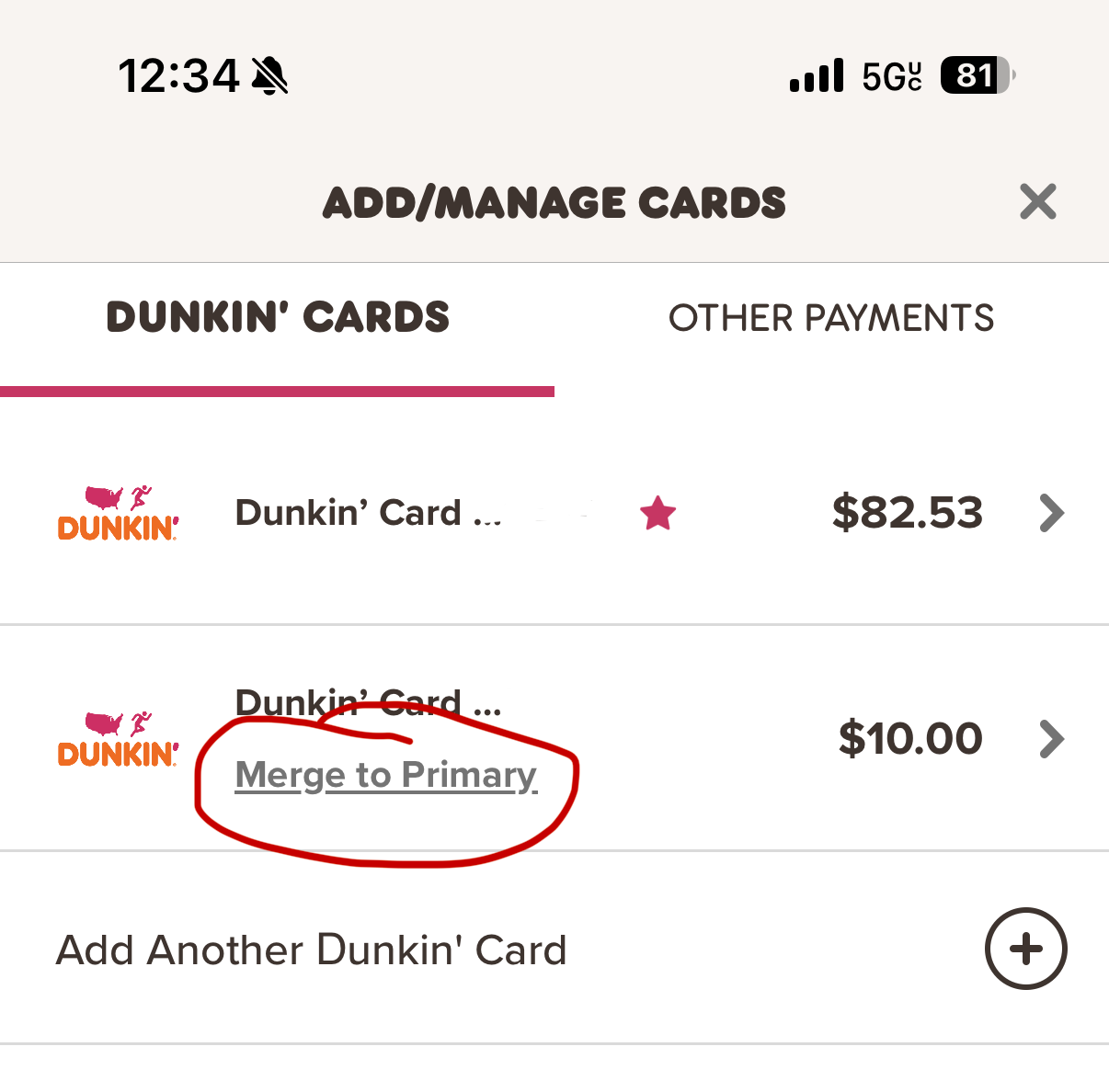
Dunkin limits the balance to about $120 per card. Once you max it out, switch out your primary card and you can get even more free Dunkin.
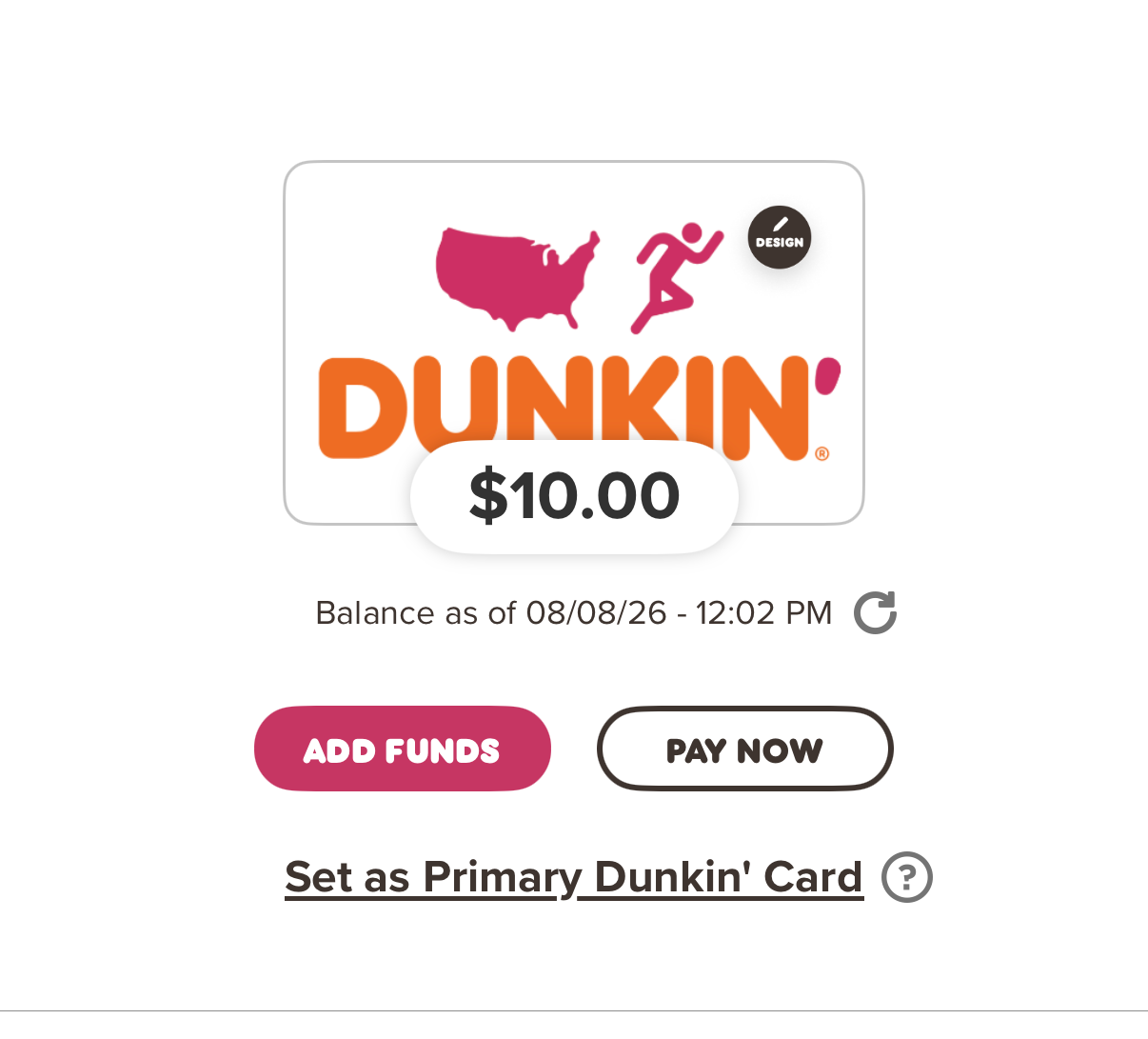
At some point, you will run into the theoretical limit, which is about $490. This number arises because you can't have more than 5 Dunkin cards simultaneously in an account and each card can only have ~$120. But, if you max out 4 cards, you then can't get new cards. $120 * 4 + $10 = $490.
The table below summarizes the key rules for the current promotion.
Requirement | Details |
|---|---|
Minimum purchase | $10 or more in one transaction |
Reward | $10 statement credit |
Maximum uses | 10 qualifying purchases per eligible card |
Maximum value | Up to $100 back per eligible card |
Promotion end | September 10, 2026 |
Payment method | Paze checkout only |
Merchant | Participating online merchants, including Dunkin' |
Credit timing | Statement credit after qualifying purchase |
The promotion is available only for qualifying transactions completed through Paze at participating merchants during the promotional period.
The promotion has several rules worth understanding.
When you make a qualifying purchase of at least $10 using Paze at a participating merchant such as Dunkin', you'll receive a $10 statement credit on the eligible card used for the purchase.
The credit comes from your bank/credit card rather than from Dunkin' itself. That means you'll still see the full purchase amount at checkout before the credit appears on your account later.
One of the biggest advantages is that the promotion is tracked separately for each eligible card. But, its really annoying to track because there's no centralized Paze credit tracker...
You can skip the manual tracking altogether by using nextcard's Paze credit tracker, which shows your earned Paze statement credits across all of your enrolled cards in one place.
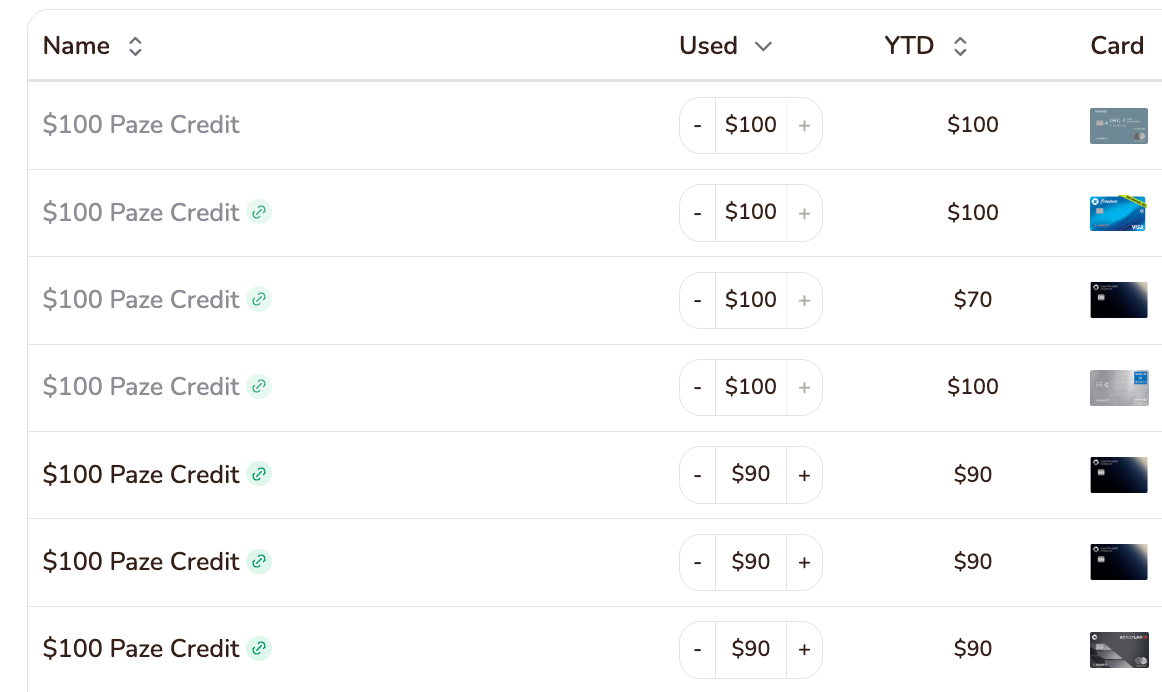
The Paze promotion is straightforward, but several common mistakes can keep an otherwise eligible purchase from earning the statement credit. Taking a minute to verify your order before checkout can save you from missing out on the offer.
Also: the promotion provides a statement credit, not an instant price reduction.
You'll pay the full purchase amount when you check out. Your bank/credit card will then apply the $10 credit to your account after the qualifying purchase posts. Depending on your bank, this may take several business days.
The biggest mistake is failing to meet the minimum purchase requirement.
The promotion requires a single qualifying purchase of at least $10. If your subtotal falls below that amount after discounts or adjustments, the transaction won't qualify for the $10 statement credit.
If you're close to the $10 amount, consider adding an extra donut, hash browns, or another inexpensive item to push your total comfortably above $10. You can also add a tip which will count.
Simply using your eligible credit card doesn't automatically get you the credit.
The transaction must be completed through Paze checkout. If you manually enter your card number, use Apple Pay, Google Pay, PayPal, or another digital wallet, the purchase won't qualify for the promotion.
Always confirm that Paze is selected before submitting your order.
This is one of the more annoying "mysterious" errors that sometimes comes up when you try to check out at Dunkin with Paze, particularly with gift cards.
It's essentially a throttling thing; Dunkin is preventing many gift card purchases from processing quickly.
If you run into this issue, we suggest waiting 48 hours before making your next gift card purchase. Every failed attempt resets the waiting clock, so be patient!!!
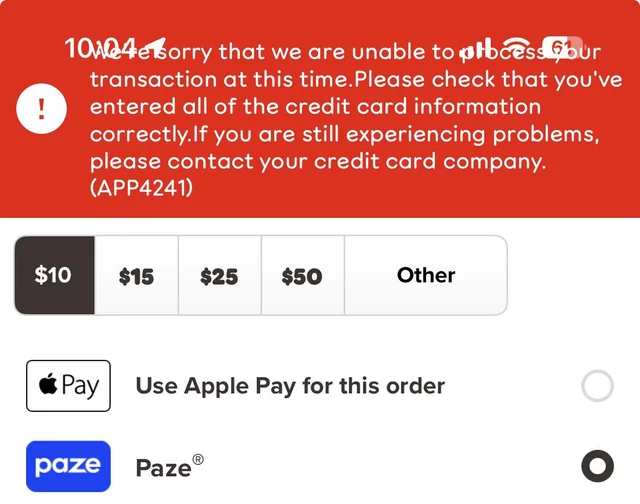
Instead, go find some other restaurants using our Paze/Clover map... the throttling appears to be isolated to Dunkin.
If you already have an eligible card from a participating bank, using Paze at Dunkin' Donuts is one of the easiest ways to take advantage of the Spend $10, Get $10 promotion. A qualifying $10 purchase can effectively offset the cost of your order through a statement credit, and the ability to earn the credit up to 10 times per eligible card makes the promotion especially valuable for frequent Dunkin' customers.
Before placing your order, confirm that you're checking out with Paze and verify that your purchase exceeds the $10 minimum.
Yes. Participating Dunkin' online checkout experiences support Paze as a payment option for eligible customers. You'll need an eligible card from a participating financial institution and must select Paze during checkout rather than another payment method.
To qualify, you must make a single purchase with one of your eligible cards of at least $10 using Paze at a participating merchant during the promotional period.
The $10 is issued as a statement credit by your participating financial institution after the qualifying purchase posts to your account. It can take 1-2 billing cycles to receive the credit but it usually posts in less than a month.
Yup, the promotion can be earned up to 10 times per eligible card, allowing qualifying cardholders to receive as much as $100 in statement credits per card during the promotional period, subject to the offer's terms and conditions.
The promotion is designed for qualifying purchases completed through Paze online checkout. If you're paying inside a Dunkin' location using a physical card or another digital wallet, the transaction won't qualify for the Paze statement credit unless the purchase is processed through an eligible Paze checkout experience.
Instead, order ahead with the mobile app!
Baskin Robbins! Load the credit into your Dunkin wallet first and then you can use it to checkout at Baskin Robbins.
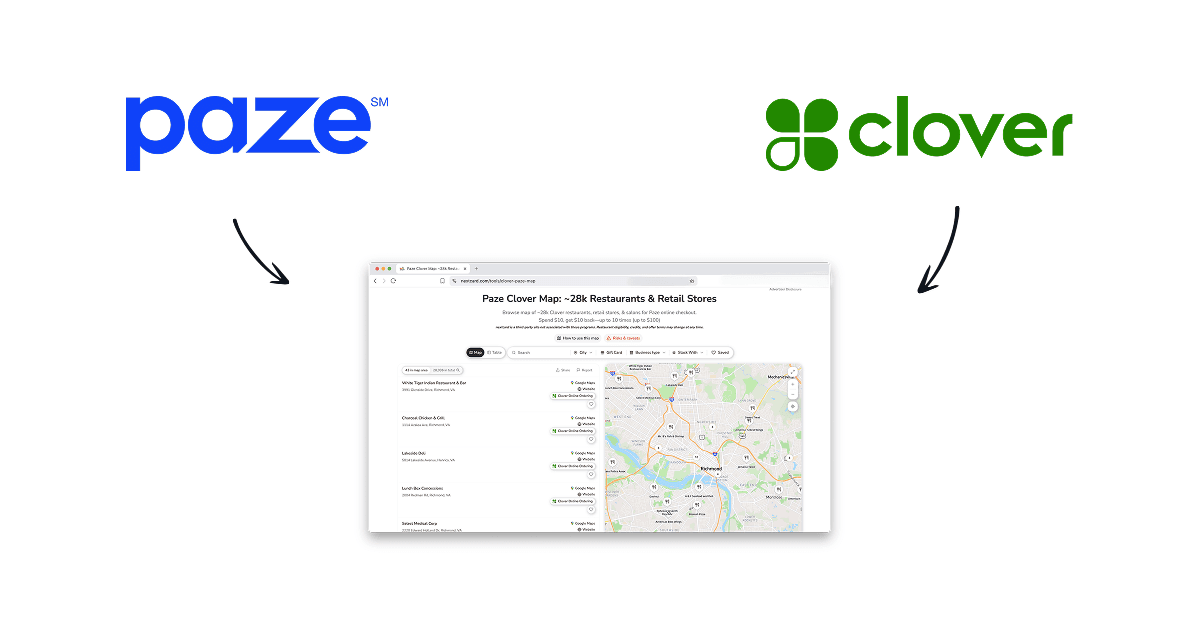
Paze also works at thousands of participating Clover restaurants and merchants. You can use the Paze Clover Map to find nearby restaurants and stores where Paze may appear as a checkout option.
For a step-by-step walkthrough, see our Paze Clover Dining Guide.
Continue reading
Join nextcard to unlock this article & keep all of your card benefits in one place.
Advertiser Disclosure: nextcard may receive compensation from card issuers. Opinions expressed here are the author's alone, not those of any bank, credit card issuer, airlines or hotel chain. For the most up-to-date terms & conditions, refer to the official credit card application on the issuer's website.

Interactive tool
Open tool
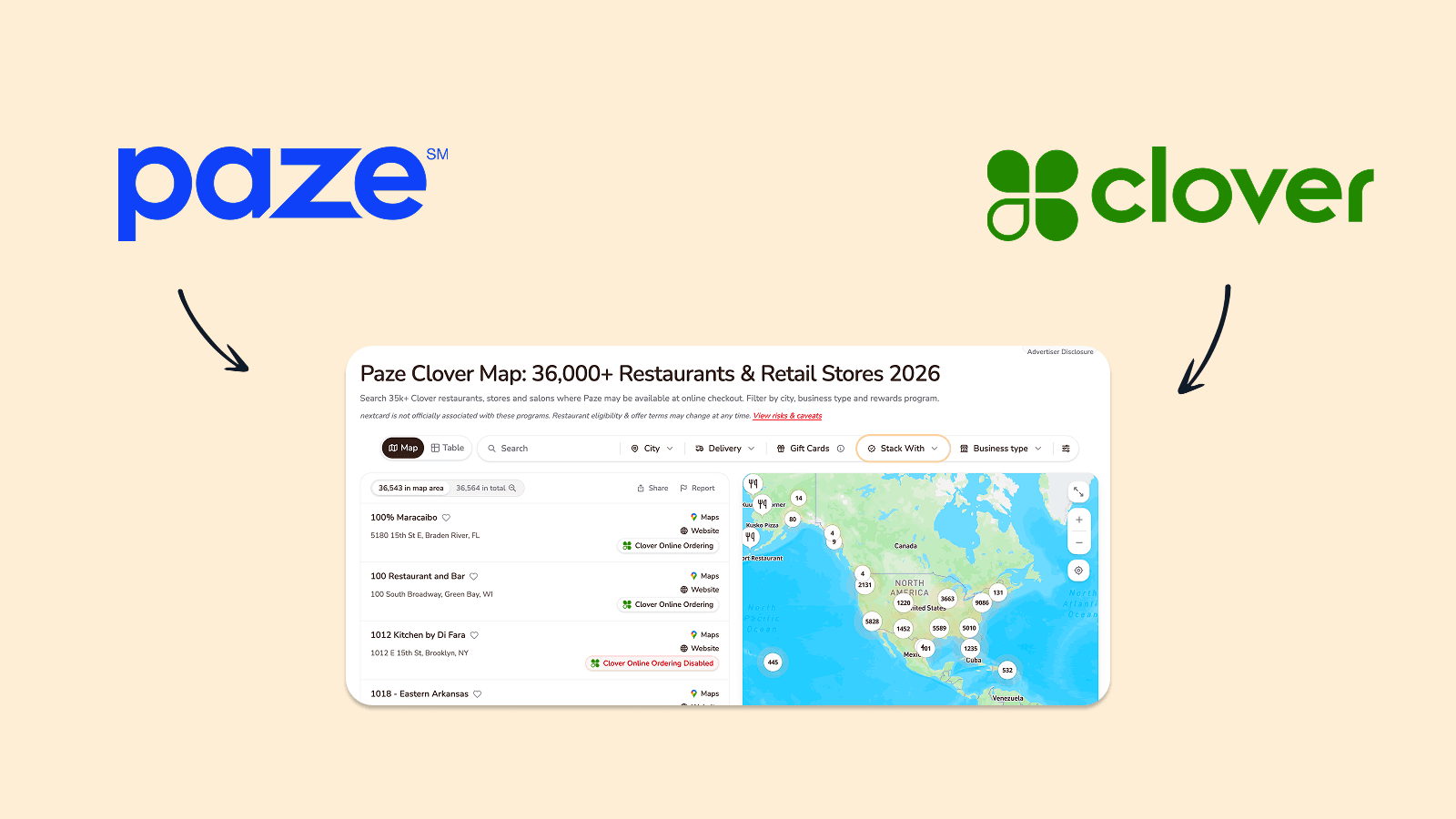
Browse 23k+ Clover restaurants, retail stores, salons, and other merchants offering Paze online checkout.
Interactive tool
Open tool